
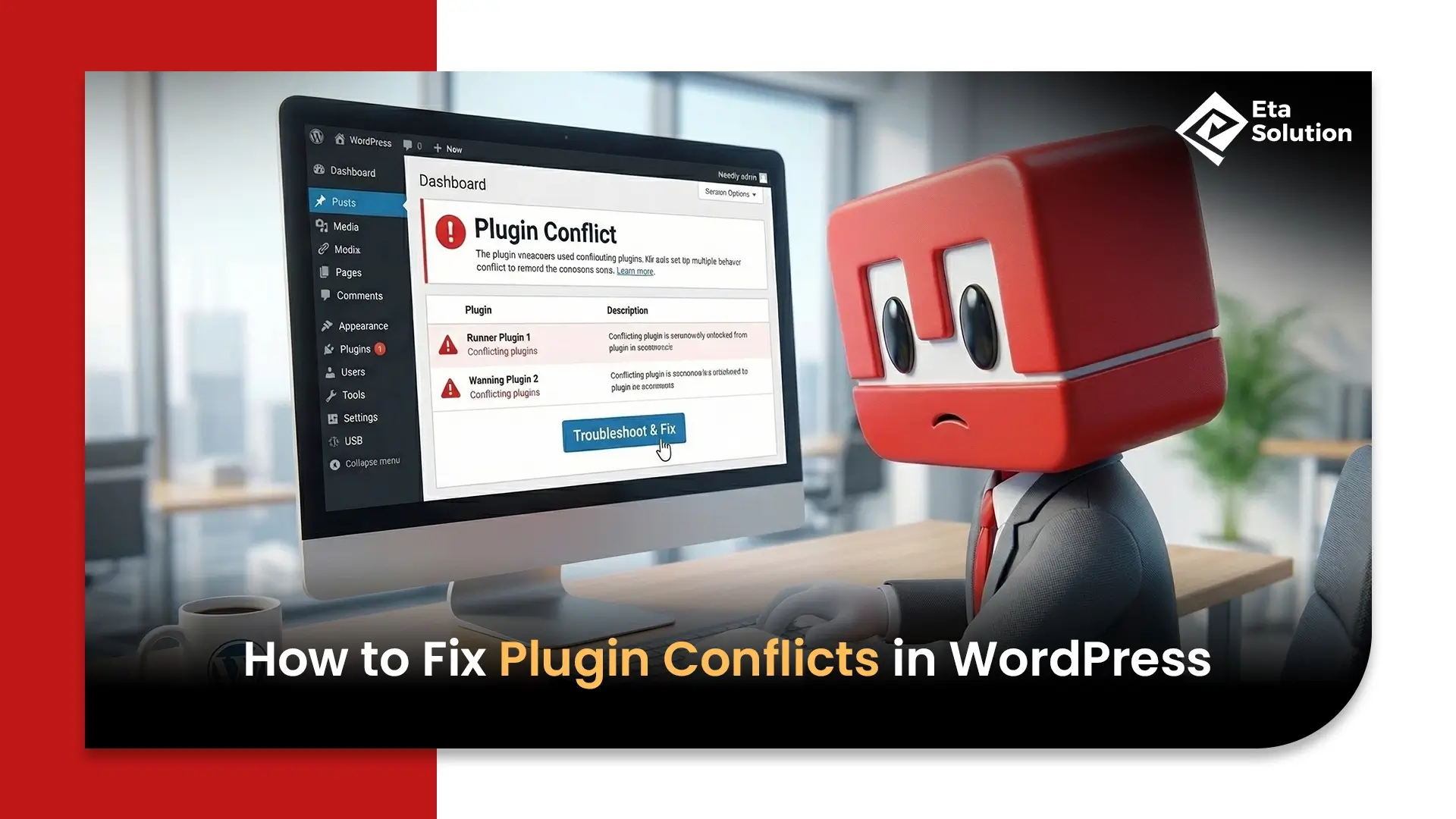
Fixing Plugin Conflicts in WordPress: A Complete Guide
One day, the submission of a form just stops. A page does not want to load at all. Or, even worse, you encounter the terrifying WordPress white screen issue without any explanation.
No alerts. No warnings.
As per a recent study by Kinsta, more than 50% of WordPress errors come from plugin conflicts or compatibility issues. Not hosting. Not themes. Plugins.
Business owners face their greatest challenge because they cannot identify their main problem, which causes them to create additional problems without realizing it. Let’s correct that.
What Causes Plugin Conflicts in WordPress?
WordPress plugins operate as complete systems because their shared environment provides them with essential resources while delivering similar functions.
Conflicts arise in the system when:
- Two plugins try to modify the same feature or function
- A plugin is not updated to match the latest WordPress core
- A plugin is incompatible with your theme
- Poor coding standards override existing scripts or styles
For example, a marketing automation plugin might inject scripts that clash with your checkout plugin. Result? Broken conversions. No obvious error.
This is why WordPress compatibility issues are less about “bad plugins” and more about “bad combinations.”
Common Signs of a Plugin Conflict
Plugin conflicts rarely announce themselves clearly. You have to read between the lines.
Here’s what typically shows up:
- Sudden layout breakage on specific pages
- Features stopping without warning (forms, sliders, buttons)
- Slower load times after installing a plugin
- Dashboard behaving oddly or not loading
- The infamous WordPress fatal error fix situation where everything crashes
Sometimes, it’s subtle. A missing CTA button can cost revenue before anyone notices.
How to Put Your WordPress Site in Troubleshooting Mode
Before you start randomly deactivating things like a stressed intern, do this properly.
Use WordPress safe mode troubleshooting:
- Install a plugin like Health Check & Troubleshooting
- Enable troubleshooting mode (only visible to admins)
- Your live site remains unaffected for users
This is crucial for businesses. You don’t “experiment” on a live revenue-generating site. If you skip this, you risk turning a minor bug into downtime.
Step-by-Step Process to Identify the Conflicting Plugin
This is the part most people rush. And mess up.
Here’s the correct approach to fix plugin conflicts WordPress:
- Deactivate all plugins
- Reactivate them one by one
- Check the issue after each activation
But don’t just “check casually.” Test the exact functionality that broke.
For example:
- If a form failed, submit it every time
- If checkout broke, run a test transaction
This is structured WordPress plugin troubleshooting, not guesswork.
Keep notes. Yes, actual notes. You’d be surprised how quickly people forget which plugin they tested.
Checking Theme and Plugin Compatibility Issues
Sometimes the plugin isn’t the villain. Your theme is.
A classic WordPress theme plugin conflict happens when:
- Themes override default WordPress functions
- Plugins assume standard behavior that the theme changes
Switch temporarily to a default theme like Twenty Twenty-Four. If the issue disappears, congratulations. Your theme is the problem. This is where most “quick fixes” fail. They only look at plugins.
How to Use Debug Mode (WP_DEBUG) to Find Errors
If you’re not using debug mode, you’re basically working blind.
Enable WP_DEBUG in your wp-config.php file:
define(‘WP_DEBUG’, true);
define(‘WP_DEBUG_LOG’, true);
define(‘WP_DEBUG_DISPLAY’, false);
Now your errors will be logged in a file instead of breaking your site.
This is essential for WordPress error log debugging.
What to look for:
- PHP errors pointing to specific plugins
- Deprecated function warnings
- Script conflicts
This is how developers actually debug WordPress plugins, not by refreshing pages and hoping for clarity.
Resolving JavaScript Conflicts in WordPress
Not all conflicts are PHP-related. Many are front-end issues.
JavaScript conflicts often occur when:
- Multiple plugins load different versions of jQuery
- Scripts are not properly enqueued
- Inline scripts override each other
Use browser DevTools (Console tab). Look for:
- “Uncaught TypeError”
- “$ is not defined”
- Script loading errors
Fixing these usually involves:
- Removing duplicate scripts
- Replacing outdated plugins
- Adjusting script loading order
This is where we resolve WordPress errors. Not beginner territory, but necessary.
Updating, Reinstalling, or Replacing Problematic Plugins
Once you find the culprit, don’t celebrate yet. Now you decide what to do with it.
Options:
- Update the plugin to the latest version
- Reinstall it to fix corrupted files
- Replace it with a better alternative
The WordPress repository contains numerous plugins that developers have abandoned, yet these plugins continue to receive widespread usage. The situation creates a disaster that will occur in the future.
Treat any plugin that has not received updates for 6 to 12 months as expired food.
Preventing Plugin Conflicts in the Future
Fixing is good. Preventing is smarter.
Here’s how professionals avoid repeating the same mess:
- Limit the number of plugins (quality over quantity)
- Avoid installing multiple plugins for the same function
- Always test new plugins in staging
- Keep everything updated regularly
A 2024 WP Engine report showed that sites with fewer than 20 plugins had 35% fewer conflict-related issues.
More plugins don’t mean more power. It means more chaos.
Best Practices for Safe Plugin Management and Testing
This is where experienced teams stand out.
If you’re serious about stability, follow this:
- Use a staging environment before every update
- Maintain a plugin audit list every quarter
- Use a reliable plugin conflict checker tool
- Always deactivate plugin safely WordPress instead of force-removing
A professional Web Development Company in Ahmedabad typically follows structured deployment workflows. They don’t “try things out” on live sites.
Because downtime equals lost money. Simple math.
Why Businesses Still Struggle With Plugin Conflicts
Here’s the uncomfortable industry truth. Most businesses treat WordPress like a plug-and-play tool. Install, activate, move on. But WordPress today is a full ecosystem. Plugins interact like micro-systems.
Even major brands have faced this. In 2023, a WooCommerce update caused checkout failures for multiple eCommerce sites due to plugin incompatibility. Revenue losses happened in hours.
The problem isn’t WordPress. It’s unmanaged complexity.
That’s why companies often turn to a Web Development Company in Ahmedabad or similar experts who understand system-level interactions, not just installations.
Closing
Plugin conflicts aren’t rare accidents. They’re predictable outcomes of unmanaged systems. Every new plugin you install is a new variable. Every update is a potential shift.
You can either:
- Keep reacting to issues
- Or build a system that prevents them
Most businesses choose the first option. Then panic when things break.
The smarter ones invest in structured WordPress plugin troubleshooting, proper testing, and expert oversight from a Web Development Company.
Because in the end, the real question isn’t “how to fix plugin conflicts WordPress.” It’s this:
How many silent errors are already costing you conversions without you even noticing?
Plugin conflicts in WordPress usually occur when two or more plugins try to perform similar functions or use incompatible code. Conflicts can also happen due to outdated plugins, incompatible WordPress versions, or poorly coded extensions. These issues may lead to errors, broken layouts, or slow website performance.
To identify a plugin conflict, deactivate all plugins and then reactivate them one by one. Check your website after each activation to see when the issue appears. The plugin that triggers the problem is likely causing the conflict. You can also use debugging tools or check error logs for more details.
Yes, outdated plugins are a common cause of conflicts. Older plugins may not be compatible with the latest WordPress core or other plugins, leading to functionality issues or errors. Regular updates help maintain compatibility and improve security.
Before fixing plugin conflicts, take a full backup of your WordPress website, including files and database. This ensures you can restore your site if anything goes wrong during troubleshooting or updates.
Yes, WordPress themes can also cause conflicts with plugins if they include overlapping features or incompatible code. Switching to a default theme like Twenty Twenty-Four can help identify whether the issue is theme-related.

What started as a passion for marketing years ago turned into a purposeful journey of helping businesses communicate in a way that truly connects. I’m Heta Dave, the Founder & CEO of Eta Marketing Solution! With a sharp focus on strategy and human-first marketing, I closely work with brands to help them stand out of the crowd and create something that lasts, not just in visibility, but in impact!
How to Fix Plugin Conflicts in WordPress

ASO news & app store updates 2026